When performing Data Queries, you are able to search through data connectors (via the Marketplace or custom data integrations) and/or the different record types and documents your organization has created, provided they are being shared with you.
The following sections will detail how each OWL product returns query results and how to perform such a search of that record type or product.
OWL Cases Product Search
In OWL, Cases are considered the primary record and act as the parent record for all other related records. Child records can include Subjects, Forms, Tips, and more.
A case record contains the complete details of the case itself, along with information from all its associated records.
When performing an OWL Case Product Search:
• The search looks through all cases except the one from which the search is initiated.
• If the keyword or search variable matches any information within a case or its associated records (Subjects, Forms, Tips, etc.), those cases will be retrieved and displayed on the results screen.
Attributes and Conditions Checked During Case Search:
The keyword search against OWL Cases considers the following:
• Case Name or Case Number matches the search criteria.
• Global or Custom attributes in the Case or linked Subject match the search criteria.
• Data Query Searches within a Case or a linked Subject match the search criteria.
• Case Notes or Subject Notes (including Name and Notes fields) match the search criteria.
• Any template attached to the Case or its child records (Subjects, Forms, Tips, ) contains data that matches the search criteria.
• The status of the case must be one of these: open, pending, archive, closed, or any custom status.
• Should not include the case from which the search is being done.
• All cases should be accessible to the user based on their license type. For example, if an administrator user does OWL product searches, then it will look for all the cases in the organization, irrespective of any department or collaboration.
Steps to Perform OWL Cases Product Search:
1. You can search for OWL products using various methods — by Datasource, Keyword, Free Text, or Wildcard range search.
2. For any search, select the OWL Cases option and click Search. For example, if you perform a full name search along with a phone number, the system will attempt to match each of these values individually against existing case information and its associated records.
3. If any matches are found based on your search criteria, the corresponding cases will be displayed in the Results view.
Results Screens
• Link Analysis View:
- OWL Cases Datasource node will show the number of cases found.
- Each Case found will be shown as a separate node associated with the Cases Data source node.
- Mouse over on each case node will show the matches that are identified separately, as shown in the screenshot below.
• Tabular View:
- You will see the detailed version of the searches under the tabular view, as shown in the screenshot below. - -- The OWL cases found during the search will be listed with the matched attributes information.
OWL Subjects Product Search
In OWL, Subjects are considered the child record of the Case and act as the parent record for all other records attached to it. Child records can include Forms, Tips, and more.
A subject record contains the complete details of the subject itself, along with information from all its associated records.
When performing an OWL Subject Product Search:
• The search looks through all subjects that are not associated with any cases or orphan records except the one from which the search is initiated.
• If the keyword or search variable matches any information within a subject or its associated records (Forms, Tips, etc.), those subjects will be retrieved and displayed on the results screen.
Attributes and Conditions Checked During Subject Search:
The keyword search against OWL Subjects considers the following:
• Subject Name matches the search criteria.
• Global or Custom attributes in the Subject match the search criteria.
• Data Query Searches within Subject match the search criteria.
• Subject Notes match the search criteria.
• Any template attached to the Subjects or its child records (Forms and Tips) contains data that matches the search criteria.
• The status of the subject must be one of these: open, pending, archive, closed, or any custom status.
• Should not include the subject or the subjects linked to the case from which the search is being done.
• All Subjects should be accessible to the user based on their license type. For example, if an administrator user does OWL product searches, then it will look for all the cases in the organization, irrespective of any department or collaboration.
Steps to Perform OWL Cases Product Search:
1. You can search for OWL products using various methods — by Datasource, Keyword, Free Text, or Wildcard range search.
2. For any search, select the OWL Subject option and click Search. For example, if you perform a full name search along with a phone number, the system will attempt to match each of these values individually against existing case information and its associated records.
3. If any matches are found based on your search criteria, the corresponding subjects will be displayed in the Results view.
Results Screens
• Link Analysis View:
- OWL Subjects Datasource node will show the number of subjects found.
- Each Subject found will be shown as a separate node associated with the Subject Data source node.
- Each Subject is an orphan subject, which means no case is attached.
- Mouse over on each Subject node will show the matches that are identified separately, as shown in the screenshot below.
• Tabular View:
- You will see the detailed version of the searches under the tabular view, as shown in the screenshot below.
- The OWL subjects found during the search will be listed with the matched attributes information.
OWL Query Product Search
In OWL, Queries are nothing but Data query Searches that are created during search and are considered the child record of the Case or Subject. A Query record contains the complete details of the search record itself, along with information from all its associated records.
When performing an OWL Query Product Search:
• The search looks through all Data Query records that are not associated with any cases or subject records except the one from which the search is initiated.
• If the keyword or search variable matches the search variable of an existing Query record, those query records will be retrieved and displayed on the results screen under the Query Data Source node.
Attributes and Conditions Checked During Query Search:
The keyword search against OWL Queries considers the following:
• Data Query Searches search variable matches the search criteria.
• The status of the subject must be one of these: open, pending, archive, closed, or any custom status.
• Should not include the search being done.
• All Subjects should be accessible to the user based on their license type. For example, if an administrator user does OWL product searches, then it will look for all the cases in the organization, irrespective of any department or collaboration.
Steps to Perform OWL Query Product Search:
- You can search for OWL products using various methods — by Datasource, Keyword, Free Text, or Wildcard range search.
- For any search, select the OWL Query option and click Search. For example, if you perform a full name search along with a phone number, the system will attempt to match each of these values individually against existing Query data that is not linked to any real case/subject.
- If any matches are found based on your search criteria, the corresponding Queries will be displayed in the Results view.
Results Screens
• Link Analysis View:
- OWL Queries Datasource node will show the number of queries found.
- Each Query found will be shown as a separate node associated with the Query Data source node.
- Each Query is an orphan Query, which means no case or subject is attached.
- Mouse over on each Query node will show the matches that are identified separately.
• Tabular View:
- You will see the detailed version of the searches under the tabular view.
- The OWL Queries found during the search will be listed with the matched attributes information.
OWL Forms Product Search
In OWL, Forms are considered the child record of a case or subject and act as the parent record for other records, such as OWL documents and vaults. A Form record contains the complete details of the Form itself, along with information from all its associated records.
When performing an OWL Forms Product Search:
• The search looks through all Forms that are not associated with any cases or subjects; all forms should be orphan records.
• If the keyword or search variable matches any information within a form template, those forms will be retrieved and displayed on the results screen.
Attributes and Conditions Checked During Form Search:
The keyword search against OWL Forms considers the following:
• Form Name matches the search criteria.
• Any template attached to the Form contains data that matches the search criteria.
• The status of the Form must be one of these: open, pending, archive, closed, or any custom status.
• All Forms should be accessible to the user based on their license type. For example, if an administrator user performs OWL product searches, it will look for all cases in the organization, regardless of department or collaboration.
Steps to Perform OWL Forms Product Search:
- You can search for OWL products using various methods — by Datasource, Keyword, Free Text, or Wildcard range search.
- For any search, select the OWL Forms option and click Search. For example, if you perform a full name search along with a phone number, the system will attempt to match each of these values individually against existing Form information and its associated records.
- If any matches are found based on your search criteria, the corresponding Forms will be displayed in the Results view.
Results Screens
• Link Analysis View:
- OWL Forms Datasource node will show the number of forms found.
- Each Form found will be shown as a separate node associated with the Form Data source node.
- Each Form is an orphan form, which means no case is attached.
- Mouse over on each Form node will show the matches that are identified separately, as shown in the screenshot below.
• Tabular View:
- You will see the detailed version of the searches under the tabular view, as shown in the screenshot below.
- The OWL Forms found during the search will be listed with the matched attributes information.
OWL Tips Product Search
In OWL, Tips are considered the child record of a case or subject and act as the parent record for other records, such as OWL documents and vaults.
When performing an OWL Tips Product Search:
• The search looks through all Tips records that are not associated with any cases or subjects; all Tips should be orphan records.
Attributes and Conditions Checked During Tips Search:
The keyword search against OWL Tips considers the following:
• Tips Name matches the search criteria.
• Any template attached to the Tips contains data that matches the search criteria.
• The status of the Tips must be one of these: open, pending, archive, closed, or any custom status.
• All Tips should be accessible to the user based on their license type. For example, if an administrator user performs OWL product searches, it will look for all Tips records in the organization, regardless of department or collaboration.
Steps to Perform OWL Tips Product Search:
- You can search for OWL products using various methods — by Datasource, Keyword, Free Text, or Wildcard range search.
- For any search, select the OWL Tips option and click Search. For example, if you perform a full name search along with a phone number, the system will attempt to match each of these values individually against existing Tips information and its associated records.
- If any matches are found based on your search criteria, the corresponding Tips will be displayed in the Results view.
Results Screens
• Link Analysis View:
- OWL Tips Datasource node will show the number of forms found.
- Each tip found will be shown as a separate node associated with the Form Data source node.
- Each Tip is an orphan Tip, which means no case is attached.
- Mouse over on each Tip node will show the matches that are identified separately, as shown in the screenshot below.
• Tabular View:
- You will see the detailed version of the searches under the tabular view, as shown in the screenshot below.
- The OWL Tips found during the search will be listed with the matched attributes information.
OWL Docs Product Search
In OWL, Documents are considered the child record of all record types. These documents are uploaded using the OWLdocs upload file feature. Further, these documents are OWL extracted, OWL imported, and OWL translated based on their file type. Each uploaded or extracted file can also have a keyword field defined by the uploader or organization users to distinguish it from others.
When performing an OWL Docs Product Search:
• The search looks through all the documents that are uploaded and extracted. If they have any data in the keyword field or inside the extracted data, then those files will be identified as a match.
• It does not matter whether the OWLdocs is mapped to any case/subject; every OWLdocs record will be considered as a part of this search and will be fetched accordingly.
• OWLdocs that are matched will be shown under the matched OWLdocs, and the OWLdocs that are attached to the case/subject from which the search is initiated but did not match the search criteria will be shown as unmatched OWLdocs on the screen.
Attributes and Conditions Checked During OWLdocs Search:
The keyword search against OWL docs considers the following:
• OWL docs file keyword data matches the search criteria.
• OWL docs that are extracted, and the extracted data matches the search criteria.
• The status of the OWL docs must be one of these: open, pending, archive, closed
• All OWL docs should be accessible to the user based on their license type. For example, if an administrator user performs OWL product searches, it will look for all OWL docs in the organization, regardless of department or collaboration.
Steps to Perform OWL Docs Product Search:
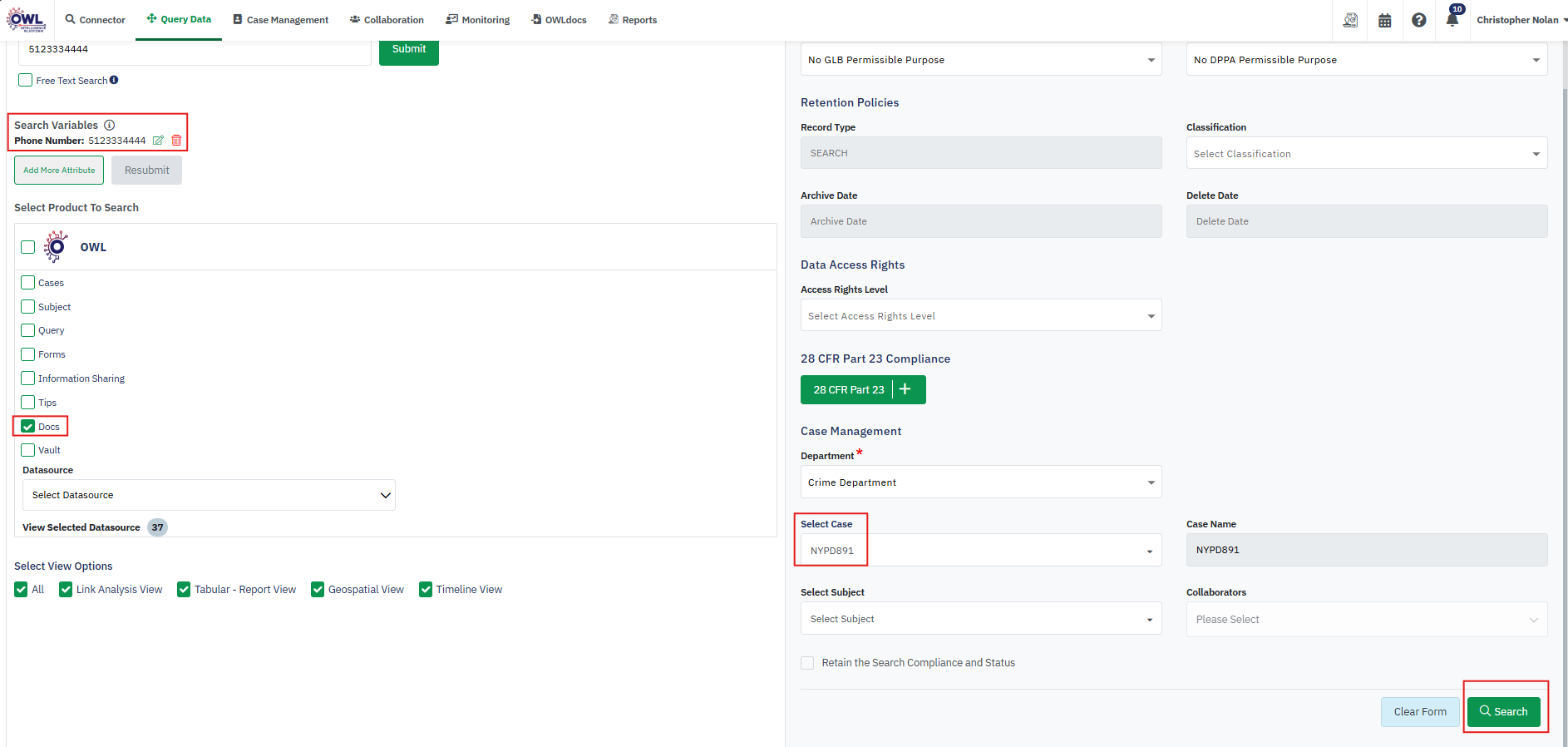
1. You can search for OWL products using various methods — by Datasource, Keyword, Free Text, or Wildcard range search.
2. For any search, select the OWL Docs option and click Search. For example, if you perform a full name search along with a phone number, the system will attempt to match each of these values individually against existing Docs keywords and extracted data, and its associated records.
3. If any matches are found based on your search criteria, the corresponding Docs will be displayed in the Results view.
 Results Screens
• Link Analysis View:
- OWL Docs Datasource node will show the number of documents found.
- From the Datasource node, a documents node is linked. Clicking on the spyglass icon on the document’s node will open a tooltip where you can see all the documents that are matched and found during the search.
- Below each document name, you have the option Original to open the document as is, or you can select the option Highlighted to open it by highlighting the matched data.
• Tabular View:
In the Tabular View, each matched document is displayed along with the reason for the match. The matching logic is categorized into two distinct columns:
Text Found:
If the match is based on content extracted from within the document (e.g., body text, metadata), the matched value will appear in this column.
Keyword Found:
If the match is based on keywords associated with the document (e.g., tags, indexed terms), the matched value will be shown here. This layout helps users quickly identify the source of the match and understand why a document was included in the results.
OWL Vault Product Search
OWL supports importing structured data files that store information in key-value formats, such as JSON, Excel, and CSV.
When these files are imported:
• Each row (in Excel/CSV) or object (in JSON) is converted into a separate vault record.
• These vault records can be linked to specific cases or subjects or remain as orphan records (not attached to any case)
During an OWL Vault Product Search:
• If any vault record data matches the keyword search, those records will be retrieved.
• This enables powerful, granular search capabilities across structured data sources.
• The OWLvault records that are attached to the case/subject from where the search is initiated, but these vault records are not matched with the keyword search criteria, then these Vault records are also retrieved, but shown as the unmatched OWL vault records on the result screen.
Steps to Perform OWL Vault Product Search:
1. You can search for OWL products using various methods — by Datasource, Keyword, Free Text, or Wildcard range search.
2. For any search, select the OWL Vault option and click Search. For example, if you perform a full name search along with a phone number, the system will attempt to match each of these values individually against existing Vault records imported data.
3. Before doing the vault product search, you can target specific vault data sources by selecting them from the Data source dropdown. This will limit the search to only the selected data source.
4. If any matches are found based on your search criteria, the corresponding Vault records will be displayed in the result screen under the OWLvault Datasource.
Results Screens
• Link Analysis View:
- On this view, you can see the OWL vault records showing under the Owl vault data source nodes.
- Mouse over on each node will show all the vault data in the tooltip.
- Whatever records inside the OWL vault data matched with the search criteria are retrieved and shown under the OWL vault data source node.
• Tabular View:
- This view shows all the vault record data in a tabular view structure.
- Maximize each vault record. You can see complete data from the respective vault and what is matched.